First window
At the launch of the application, you will see this window:
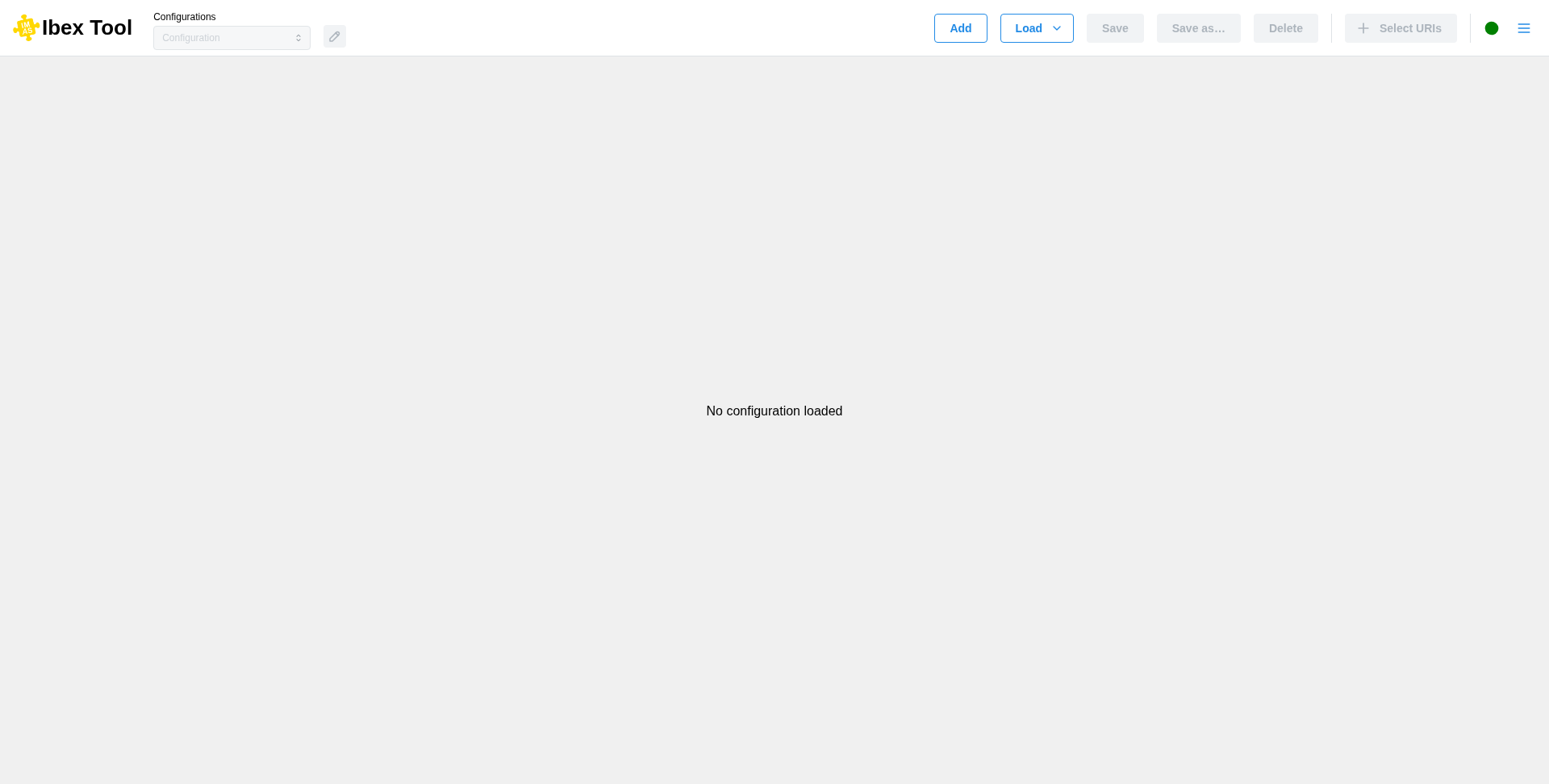
On this screen, you will be required to either create a new configuration (“Add”) or load an existing one from your local machine (“Load”).
The buttons at the top right, before the separator, allow you to manage your configurations: create (“Add”), load (“Load”), save (“Save” and “Save as…”, see Save configuration) and delete (“Delete”). You can switch between configurations using the selection menu at the top left, and rename the current one with the pencil button next to it (see Rename configuration).
To the right of the separator, you can add new URIs (see Add uri).
On the far right, a dot indicates the server status, and the menu button (☰) opens the Preferences and help.
Tip
IBEX can also start directly on configurations or data entries given on the command line, see Command-line options.